
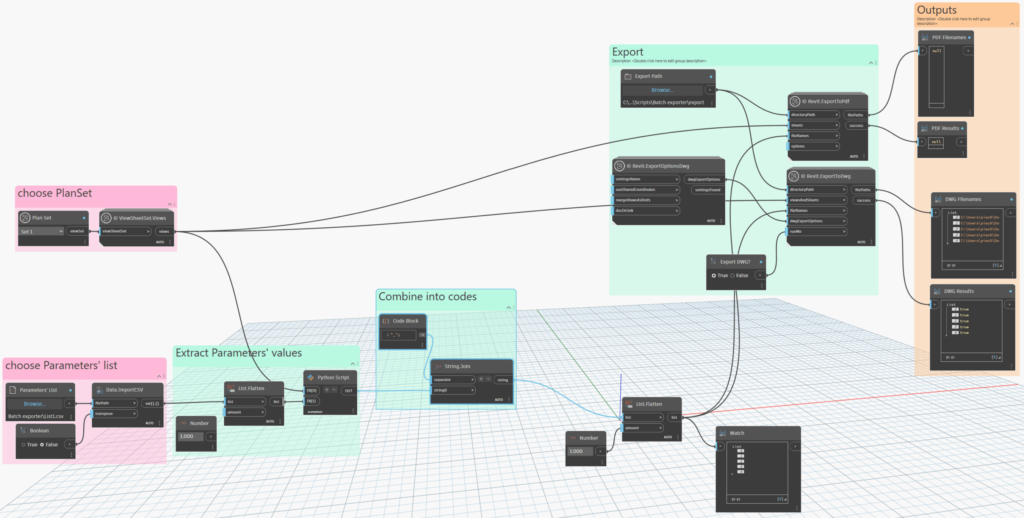
When working with a Common Data Environment (CDE), the task of exporting multiple sheets from Autodesk Revit—in both PDF and DWG formats—can become a repetitive bottleneck. Add to that the requirement to adhere to precise file-naming conventions tied to sheet parameters, and the process becomes error-prone and inefficient.
Here, I present a streamlined workflow leveraging Dynamo (along with the custom nodes from the Crumple package) to automate the batch export of PDFs and DWGs with parameter-based filenames. The solution is scalable across projects, adaptable to varying conventions, and accessible to project teams.
Goal
The intent of this workflow is to automatically export both .PDF and .DWG versions of Revit sheets, while assigning custom‐formatted file names based on sheet parameters.
Key benefits:
- Consistent naming aligned with CDE requirements
- Reduced manual intervention and risk of error
- A repeatable and project-agnostic routine usable by different teams within the organisation
Preparation: PlanSet & CSV List
PlanSet
Define and collect the set of sheets you intend to export. In Dynamo, the PlanSet will be decomposed into individual sheet elements for processing.
CSV List
Before scripting, prepare a CSV file that lists the exact parameter names (including correct casing) that will be used for generating filenames. These parameters should already be filled in each sheet in the Revit project.
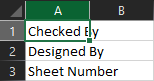
In Dynamo:
- Import the PlanSet via the Crumple package, to isolate individual sheet elements
- Ensure you reference only sheets (not views) so that expected parameters exist and export nodes function correctly
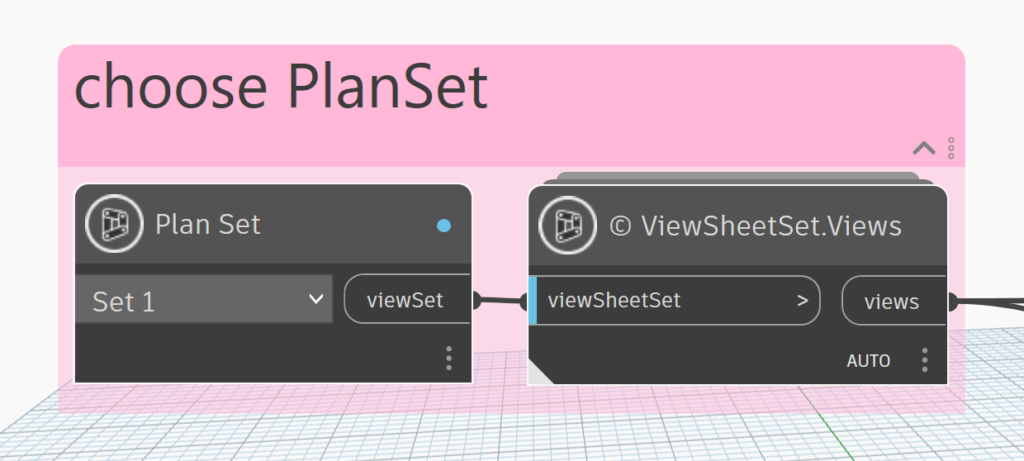
Parameters: Defining & Importing
Parameters may be either standard Revit parameters or Shared Parameters—what matters is that the names in the CSV match exactly the parameter names in the model (case‐sensitive).
Workflow in Dynamo:
- Import the CSV using
Data.ImportCSV. - Observe the resulting list structure: values may appear nested.
- Flatten the list (first level) so the parameter values align with the corresponding sheet elements.
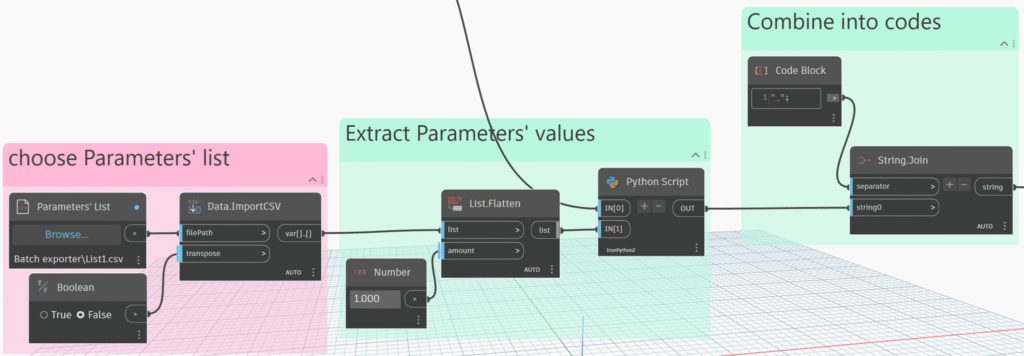
This prepares the data for the next step: filename generation in Python.
Python: Filename Logic
In this script, we extract parameter values from each sheet element and assemble filenames using a chosen separator (such as _ or –). Many CDE systems rely on fixed separators to parse and categorise files, hence the explicit concatenation.
import clr

# Revit API & Services
clr.AddReference("RevitServices")
from RevitServices.Persistence import DocumentManager
doc = DocumentManager.Instance.CurrentDBDocument

clr.AddReference("RevitAPI")
from Autodesk.Revit.DB import BuiltInParameter, StorageType

clr.AddReference("RevitNodes")
import Revit
clr.ImportExtensions(Revit.Elements)

# --- INPUT ---
input_elements = IN[0]

# Always unwrap
if isinstance(input_elements, list):
    elements = [UnwrapElement(el) for el in input_elements]
else:
    elements = [UnwrapElement(input_elements)]

paramRaw = IN[1]  # CSV list of parameter names

# Clean CSV strings
if not isinstance(paramRaw, list):
    paramRaw = [paramRaw]
paramNames = [str(x).strip().strip('"') for x in paramRaw]

# Built-in mapping
builtin_map = {
    "Sheet Number": BuiltInParameter.SHEET_NUMBER,
    "Sheet Name": BuiltInParameter.SHEET_NAME,
    "Designed By": BuiltInParameter.SHEET_DESIGNED_BY
}

results = []

for el in elements:
    row = []
    for name in paramNames:
        val = None

        # --- First try built-in ---
        if name in builtin_map:
            param = el.get_Parameter(builtin_map[name])
            if param:
                val = param.AsString()

        # --- Then try shared/project parameters ---
        if val is None:
            for p in el.Parameters:
                try:
                    if p.Definition.Name == name:
                        st = p.StorageType
                        if st == StorageType.String:
                            val = p.AsString()
                        elif st == StorageType.Double:
                            val = p.AsValueString() or str(p.AsDouble())
                        elif st == StorageType.Integer:
                            val = p.AsValueString() or str(p.AsInteger())
                        elif st == StorageType.ElementId:
                            idVal = p.AsElementId()
                            if idVal.IntegerValue >= 0:
                                elemRef = doc.GetElement(idVal)
                                val = elemRef.Name if elemRef else str(idVal.IntegerValue)
                            else:
                                val = ""
                        break
                except Exception as e:
                    val = "Error: " + str(e)

        if val is None:
            val = ""

        row.append(val)
    results.append(row)

OUT = results
Key checks:
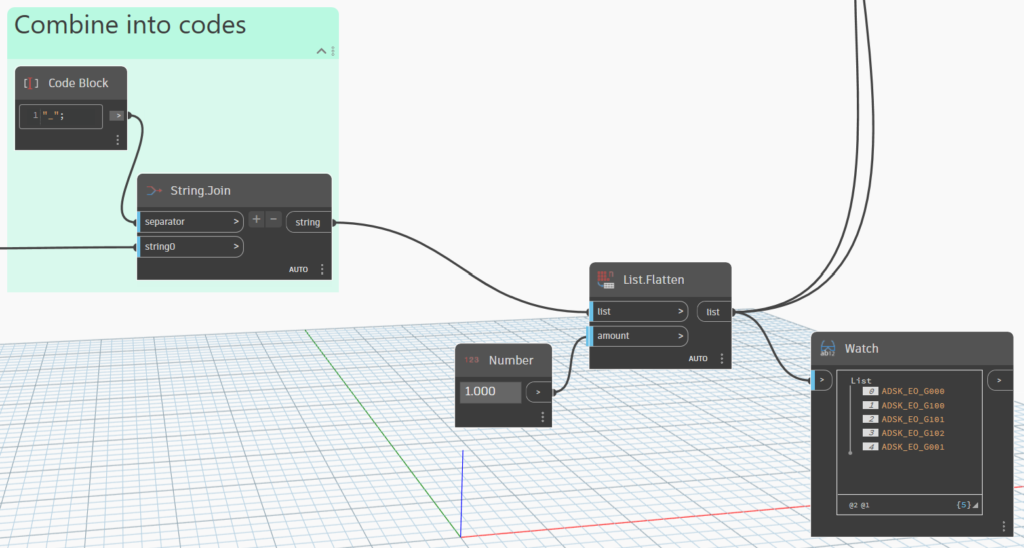
- Verify that the list of values is properly flattened (i.e., no nested lists).
- Confirm the correct order of parameters corresponds to your naming convention.
- Join the strings in the defined format to produce the final filename per sheet.
Export: PDFs and DWGs via Crumple
Although Revit (from version 2022 onward) offers built-in batch export capabilities for PDF based on parameter naming, Dynamo lacks an out-of-the-box node for such functionality and DWG export is not natively supported.
In the Export section of your script you will use:
Revit.ExportToPdfRevit.ExportToDwg
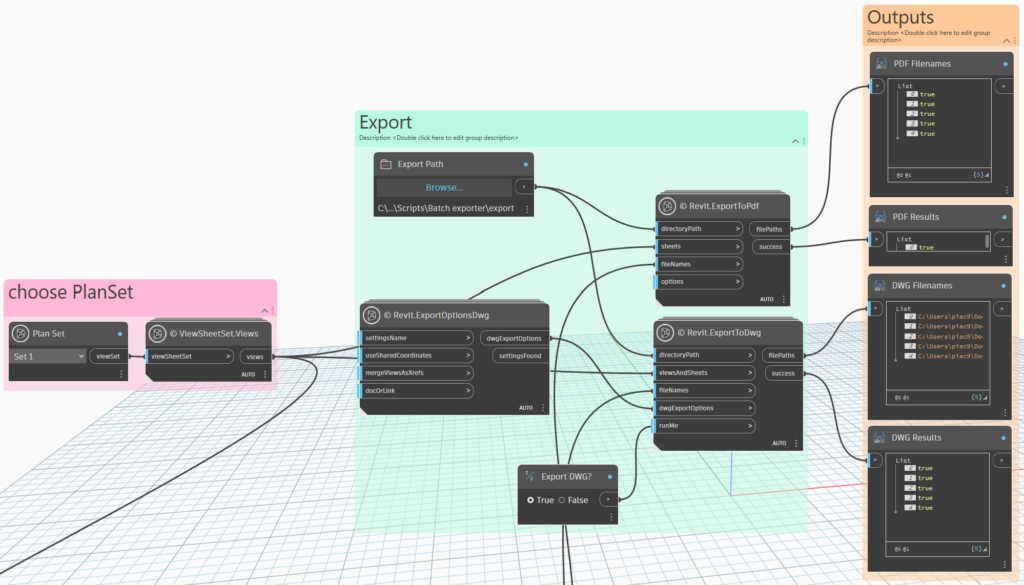
Ensure you supply:
- The export output directory
- The sheet elements (not just names)
- The custom filenames generated in Python
If DWG export fails, check that the Revit.ExportOptionsDwg node is correctly connected and you have writing-permission for the directory.
To enhance usability, especially for non-technical team members, include Boolean inputs (e.g., Export DWG?). This makes the graph friendly for Dynamo Player usage.
By combining Dynamo, the Crumple package, parameter logic, and a CSV‐driven naming convention, this workflow automates a task that traditionally consumed considerable time and required careful manual oversight. The result is:
- A consistent file‐naming pattern aligned with CDE requirements
- A scalable process that can be replicated across different projects
- Reduced manual effort and improved reliability of exports
Short on time? Download and share the script from Google Drive!